

- Locate your site URL on the hostingraja.in Dashboard:
- Log in to the Hosting Panel at https://clients.hostingraja.in/
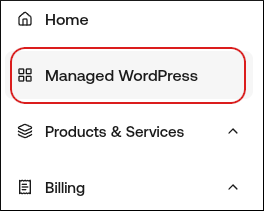
- In the left sidebar, click Managed WordPress:
- On the My Websites page, locate the site, and then click Manage:
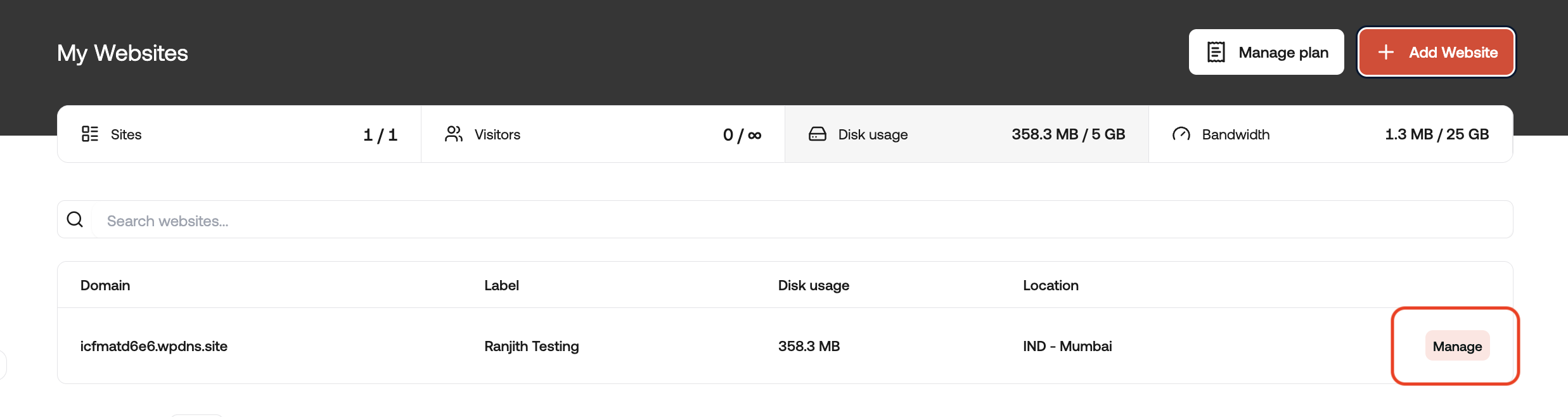
- The site URL appears at the top of the page (for example, abc123.onrocket.site).
- Log in to your GoDaddy account.
- Navigate to the DNS management for the domain you want to point to hostingraja.in.
- Locate the A record for your apex domain.
This is either @ or your domain (for example, example.com).
- To edit the record, click the pencil icon to the far right.
- Locate the field Points to, and then add the IP address 104.19.154.92.
- Click Save.
- Locate the www record:
- If the www record exists, edit it to point to your site URL (for example, abc123.onrocket.site).
- If the www does not exist, create the record: Type: CNAME Name: www Host: Your site URL (abc123.onrocket.site)
- That’s it! Your domain is now pointing to hostingraja.in.
It may take up to 24 hours for DNS to fully propagate around the world. However, typically these changes take place in just a few minutes.