

- Log in to the Hosting Panel at https://clients.hostingraja.in/
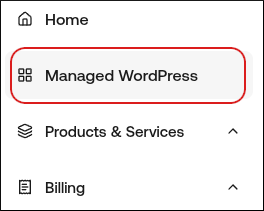
- In the left sidebar, click Managed WordPress:
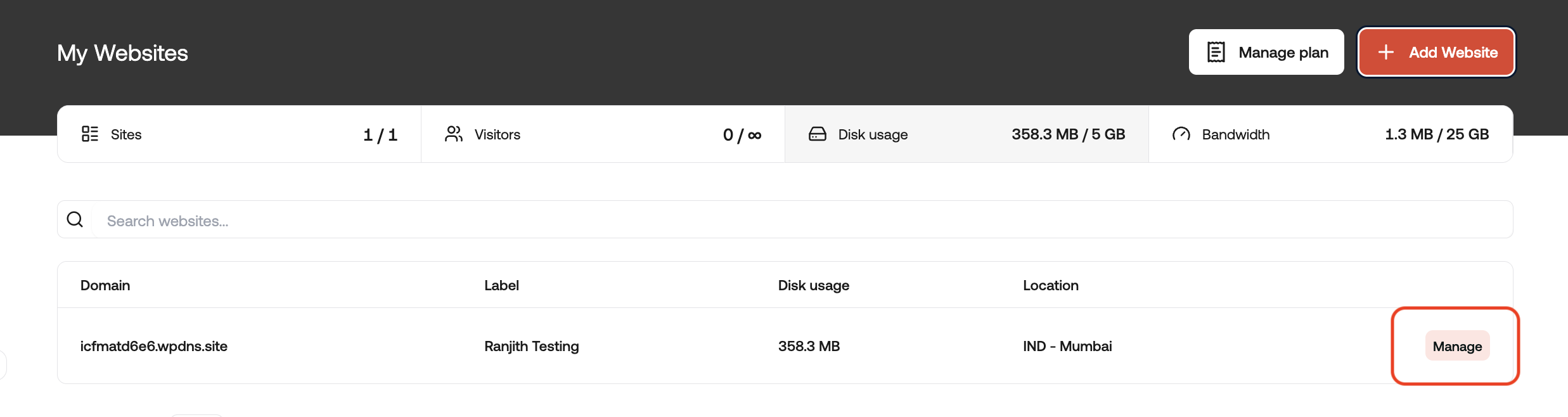
- On the My Websites page, locate the site, and then click Manage:
- At the top right of the page, click WP Admin:

- In the WordPress admin area, on the top menu bar, hover over CDN Cache and then click one of the following options:
- Purge Everything: This option clears the cache for your entire site.
- Custom purge: This option enables you to purge specific URLs. This can be useful if you want to preserve your site’s cache, but refresh just a single page or element.
For example, if you want to purge the cache for https://example.com/path/to/cached/page, type /path/to/cached/page in the Custom Purge section, and then click Submit.
- Log in to the Hosting Panel at https://clients.hostingraja.in/
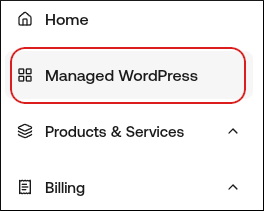
- In the left sidebar, click Managed WordPress:
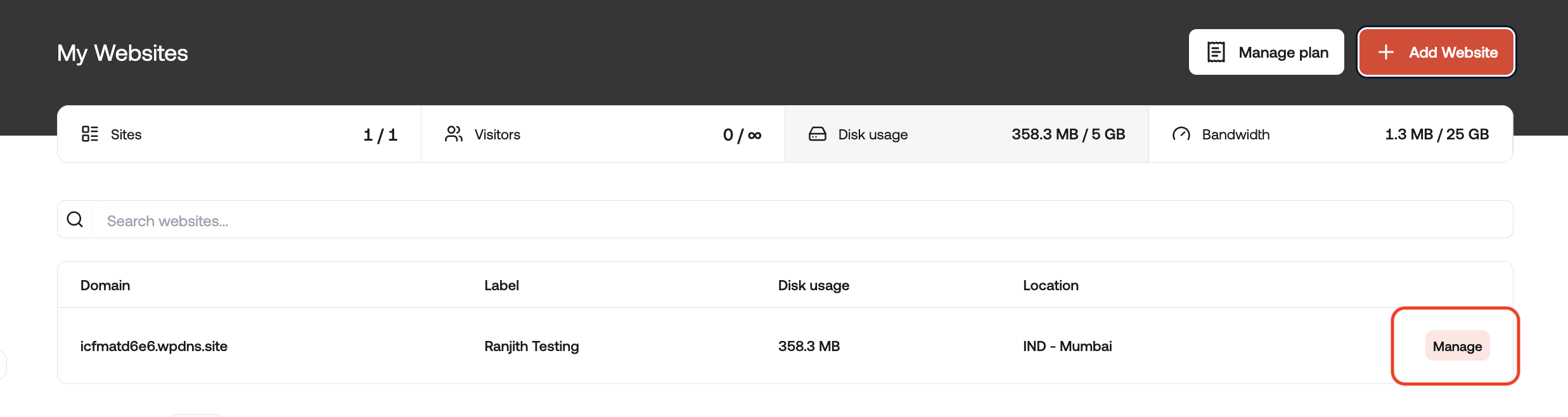
- On the My Websites page, locate the site, and then click Manage:
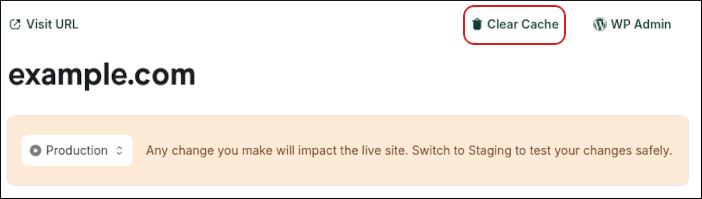
- At the top right of the page, click Clear Cache:
- In the Clear Cache dialog box, select an option:
- Purge Everything: This option clears the cache for your entire site.
- Purge Specific URL Paths: This option enables you to purge specific URLs. This can be useful if you want to preserve your site’s cache, but refresh just a single page or element.
To clear just the index page of a site, type a forward slash (/).
- Click Purge.