

- Log in to the Hosting Panel at https://clients.hostingraja.in/
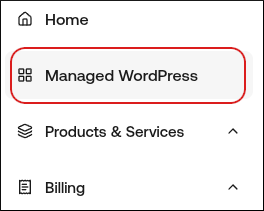
- In the left sidebar, click Managed WordPress:
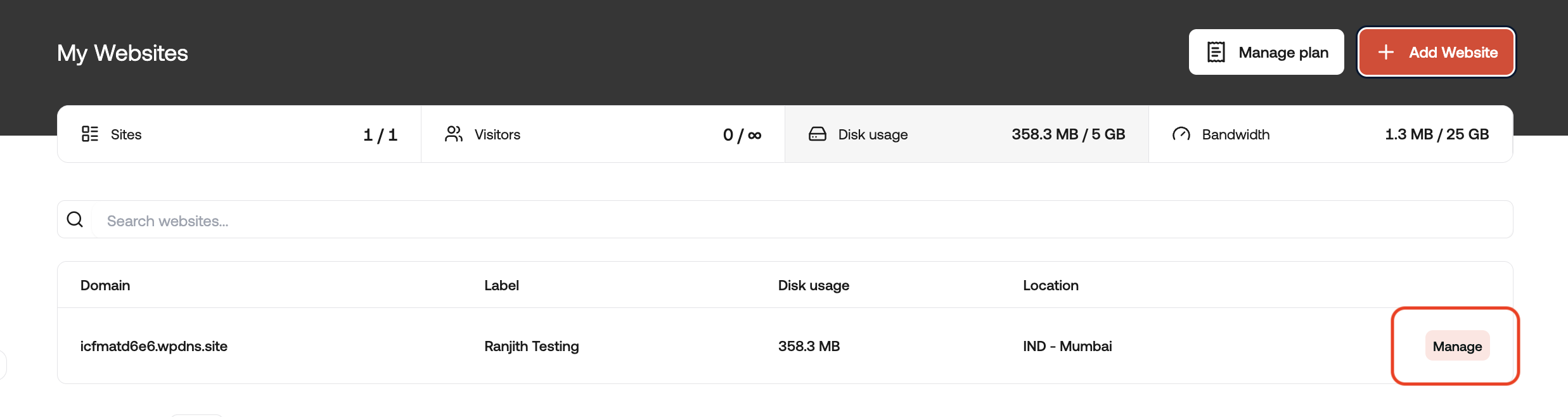
- On the My Websites page, locate the site, and then click Manage:
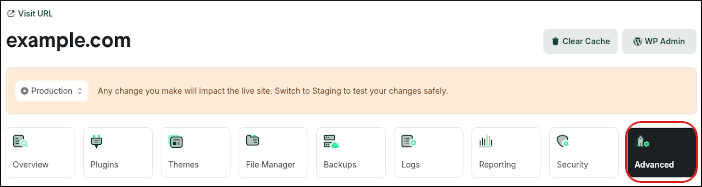
- On the hostingraja.in dashboard, click the Advanced icon:
- Scroll to the bottom of the page, and then click Delete Site:

- Confirm the deletion. The entire site, including backups, is removed from your account.
Managed hosting for WordPress powered by Rocket.net
How to remove a WordPress site from hostingraja.in Managed WordPress
Learn how to remove a WordPress site from a hostingraja.in Managed WordPress hosting plan.
You might have created an isolated WordPress installation to test a new style, plugin, or experiment with, and now you’d like to remove it from your hostingraja.in Managed WordPress account. You can easily do this from the hostingraja.in Dashboard.
To delete a site, follow these steps: