

- Log in to the Hosting Panel at https://clients.hostingraja.in/.
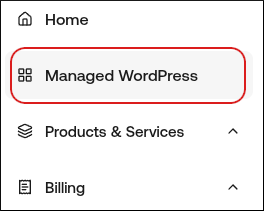
- In the left sidebar, click Managed WordPress:
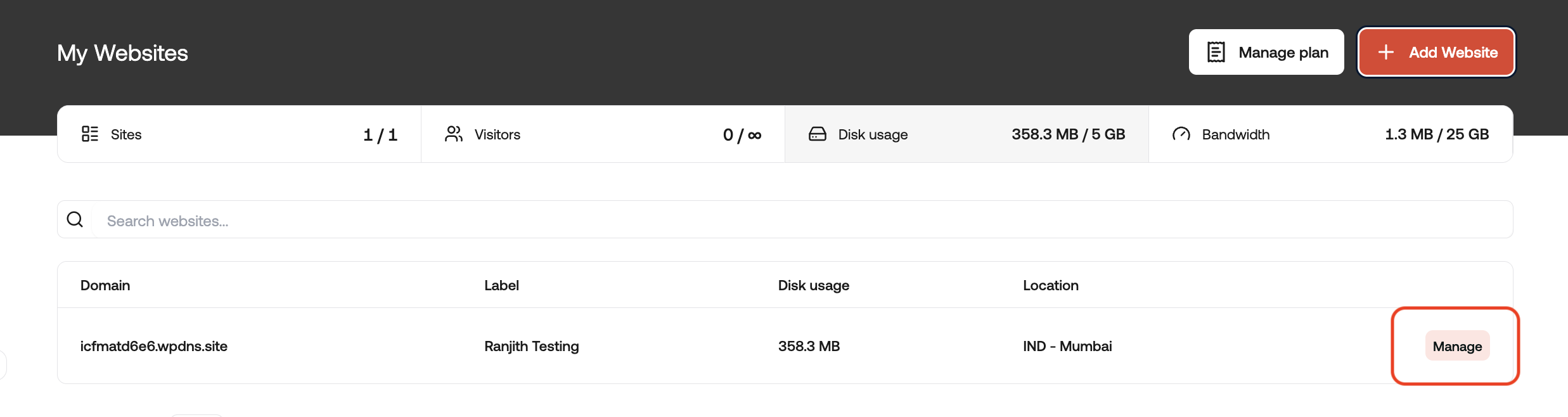
- On the My Websites page, locate the site, and then click Manage:
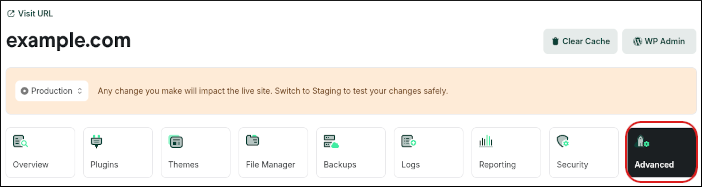
- On the hostingraja.in dashboard, click the Advanced icon:
- In the Advanced Settings section, in the Database Management row, click phpMyAdmin:

Managed hosting for WordPress powered by Rocket.net
How to manage your databases with phpMyAdmin on hostingraja.in Managed WordPress
Learn how to manage your WordPress databases from the hostingraja.in Dashboard.
While managing your WordPress sites hosted on hostingraja.in Managed WordPress, you may need to edit the databases directly. You can do this easily from the hostingraja.in Dashboard using phpMyAdmin.
To access phpMyAdmin and your databases from the hostingraja.in Dashboard, follow these steps: