

- Log in to the Hosting Panel at https://clients.hostingraja.in/
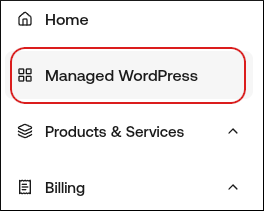
- In the left sidebar, click Managed WordPress:
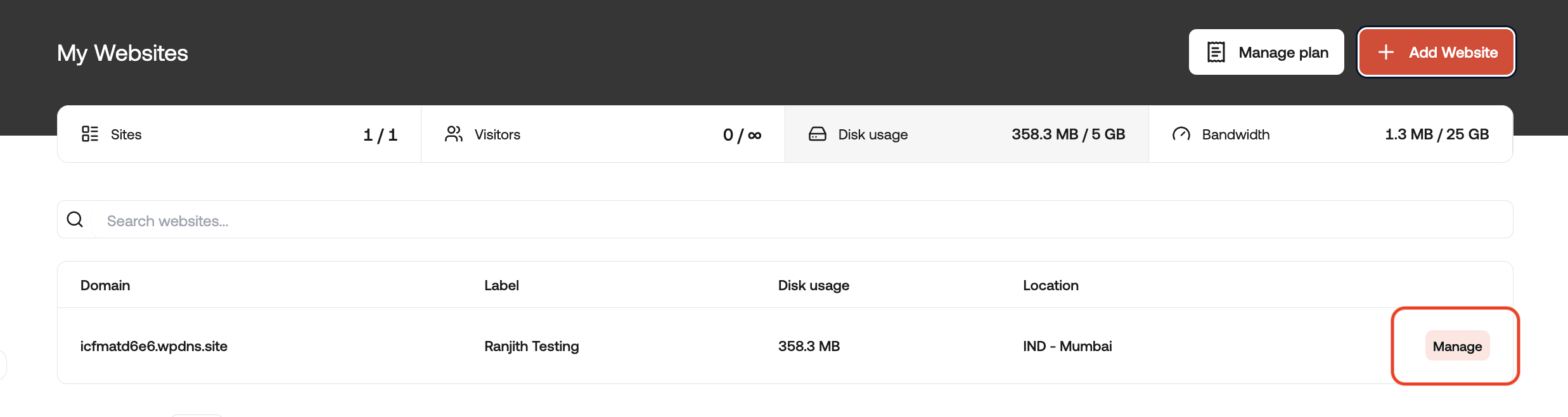
- On the My Websites page, locate the site, and then click Manage:
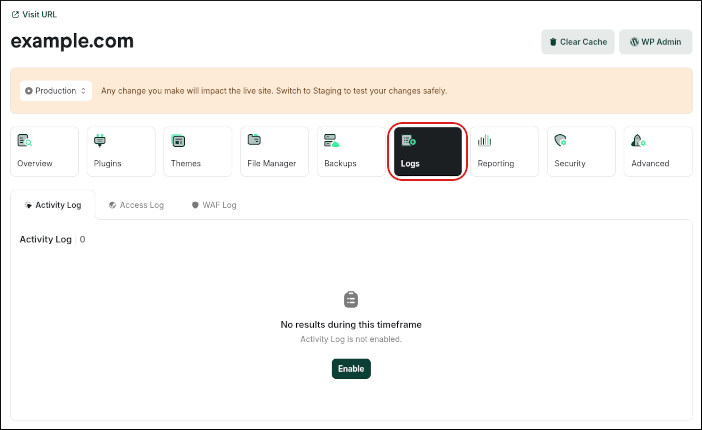
- On the hostingraja.in dashboard, click the Logs icon:
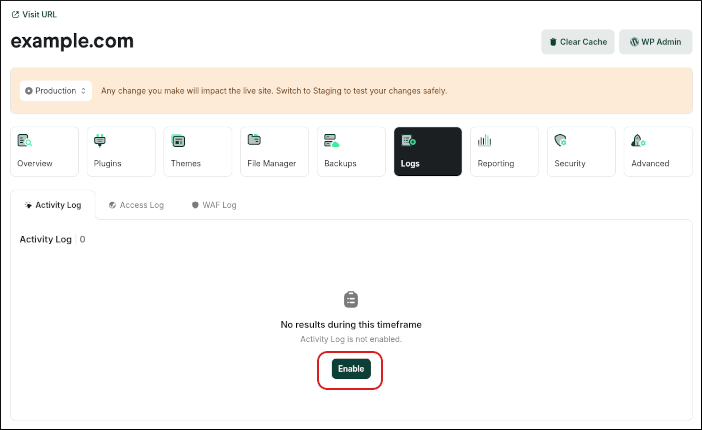
- On the Activity Log tab, click Enable. Once enabled, you’ll be able to view the Activity Log by going to this same page:
Managed hosting for WordPress powered by Rocket.net
Using the WordPress Activity Log on hostingraja.in Managed WordPress
Learn how to enable and use the WordPress Activity Log on hostingraja.in Managed WordPress.
The WordPress Activity Log feature is exclusive to hostingraja.in Managed WordPress. Rather than logging activity in your WordPress site’s database and installing a heavy plugin that slows down your site, our Activity Log feature installs a lightweight plugin that logs the activity to our servers. We make the data available in the hostingraja.in Dashboard. thereby offloading the work from your WordPress site.
To enable and view the WordPress Activity Log, follow these steps: